
Step 1
Go to the OIS Connect website (Click on the link below):
https://www.oiscentral.com/OISC/Connect/#!/connect-setting/general

Step 2
Enter the User Name and Password (Provided separately in an email) and click on the “SIGN IN” button.

Step 3
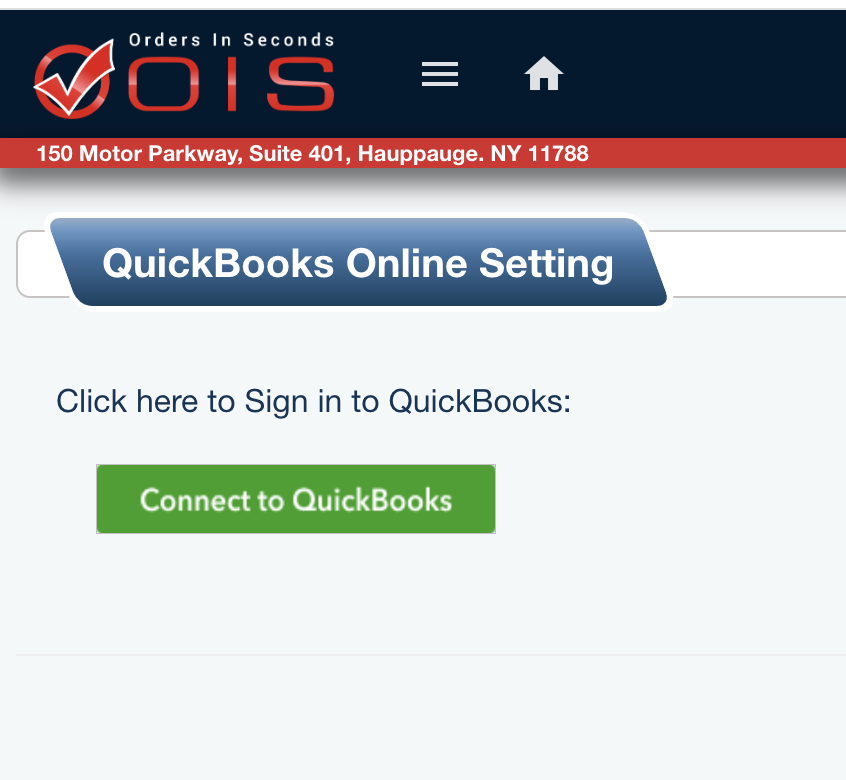
Click on the “Connect to QuickBooks” button.
Step 4
Enter the QuickBooks Online user’s credentials and click on the Sign-In button.

Step 5
Click on the “Connect” button.

Step 6
Once connected; it will display this website page and the message stating that it is Connected:

Message displaying that OIS Connect is connected to QuickBooks Online:
Comments
0 comments
Please sign in to leave a comment.